
Pick one system and start logging every application today. That single habit separates job seekers who land interviews from those who lose track of promising roles and miss follow-up windows. My honest recommendation: if you want to start in the next ten minutes, duplicate a Notion job-tracking template, drop in your first five open roles, and you’re running. If you prefer full control over your data, a Google Sheets CSV gives you that with zero cost. And if you’re applying at volume and want automated capture, the Jobscan Chrome extension pulls job listings directly from boards, so nothing slips through.
Those three options cover the vast majority of active job seekers. The rest of this guide helps you choose the right one, set it up fast, and build the daily habits that actually move your search forward.
Table of Contents
- How do the three job search tracker approaches compare?
- What fields should every job application tracker include?
- How do you set up a basic tracker on Google Sheets, Notion, or a dedicated app?
- What daily and weekly routines keep your tracker working for you?
- Where can you find ready-to-use templates and browser tools?
- What do recruiters actually notice in your tracker notes?
- How do you customize your tracker for your specific search strategy?
- The tracker is a tool, not the strategy
- A higher-touch option for senior professionals who want faster results
- Useful resources to get started today
- Sources
How do the three job search tracker approaches compare?
The right tracker is the one you’ll actually use consistently. Here’s how the three main approaches stack up across the dimensions that matter most.
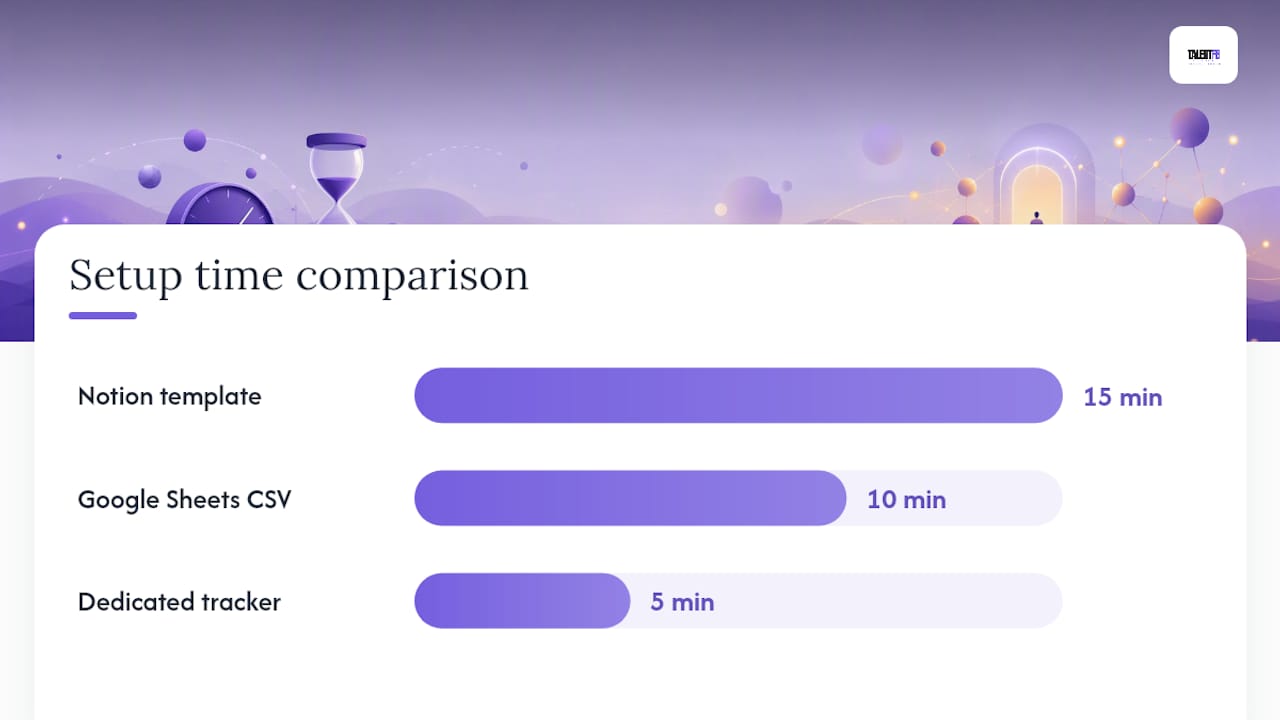
| Dimension | Notion Template | Google Sheets CSV | Dedicated Tracker (Teal / Jobscan-style) |
|---|---|---|---|
| Best for | Flexible, visual thinkers | Privacy-first, data-control seekers | High-volume applicants needing automation |
| Price / free tier | Free (Notion free plan) | Free (Google account) | Free tier available; paid plans vary |
| Ease of setup | Duplicate and customize in 15 min | Build or import CSV in 10 min | Install extension, connect account in 5 min |
| Platform | Web, mobile, desktop | Web, desktop | Web + Chrome extension |
| Automation & reminders | Manual or Notion automations | Manual (formulas for dates) | One-click capture, built-in reminders |
| Templates / importability | Rich template gallery, CSV import | Full CSV control, easy export | Auto-capture from 30+ boards, CSV export |
| Privacy & data ownership | Data on Notion servers | Data in your Google account | Data on vendor servers; check export policy |
Third-party comparisons show that dedicated trackers split into two camps: Teal leans toward AI resume matching and structured fields, while Huntr prioritizes a visual Kanban pipeline and CRM-style contact tracking. Independent reviews consistently flag free-tier limits and export options as the practical deciding factor for long searches, so always verify what you can download before committing.
Notion template: pros and cons
Notion’s template gallery is genuinely excellent for job seekers who think visually. You get Kanban, table, and calendar views out of the box, and customizing properties takes minutes. The main limitation: it lives on Notion’s servers, so sensitive negotiation notes deserve extra care with sharing permissions.
Google Sheets CSV: pros and cons
A spreadsheet gives you total ownership. You can build exactly the columns you need, export anytime, and share nothing with a third party. The trade-off is manual entry for every field, and there’s no built-in reminder system unless you add calendar integrations yourself.
Dedicated tracker (Teal / Jobscan-style): pros and cons
Dedicated trackers offer one-click capture, drag-and-drop Kanban, match scores, and built-in response analytics that spreadsheets simply don’t provide out of the box. Huntr’s Kanban-style workflow is built for momentum and quick resume iteration, which suits applicants moving fast across multiple boards. The cost: your data lives on a vendor’s platform, and free-tier caps can become restrictive on longer searches.
Recommended pick by scenario:
- High-volume applicant (10+ applications/week): Dedicated tracker with browser extension for speed.
- Selective applicant (2–5 targeted roles/week): Notion template or Google Sheets for depth and customization.
- Privacy-first applicant: Google Sheets, stored in a password-protected Google account with no third-party access.
What fields should every job application tracker include?
Most people track too little early on and regret it when a recruiter calls three weeks later and they can’t remember which resume version they submitted. These are the fields worth capturing from day one, drawn from what Notion’s tracker templates and experienced practitioners recommend as the minimum set.
Core fields:
- Company — full legal name, not just the brand shorthand
- Role / title — exact job title as posted
- Source — where you found it (LinkedIn, referral, company site, job board)
- Date discovered / date applied — both matter for follow-up timing
- Application method — portal, email, referral, direct outreach
- Resume version used — file name or version number so you can pull the right one fast
- Cover letter / notes — key angle you used, any customization
- Contact person + role — hiring manager, recruiter, or internal referral
- Status — standardized (see taxonomy below)
- Next action + due date — the single most important field for follow-through
- Tags — role family, seniority level, referral flag
- Salary range / compensation notes — target and posted range if visible
- Location / remote — on-site, hybrid, or fully remote
- Attachments — saved job description, screenshots before the posting disappears
Status taxonomy that actually works
Standardizing your statuses prevents the “Applied / Maybe Applied / Applied?” confusion that makes trackers useless after week two. A clean taxonomy:
Saved → Applied → Screening → Interview → Offer → Rejected → Closed
“Closed” covers roles you withdrew from or that went dark. Keep it separate from “Rejected” so your response-rate metrics stay accurate.
Which fields are sensitive?
Contact names, negotiation notes, and salary figures are the fields most worth protecting. Store these in a password-protected account, avoid sharing tracker links publicly, and export a backup CSV at least once a week. For senior or confidential searches, the guidance on discreet job search methods is worth reading before you set up any cloud-based tracker.
How do you set up a basic tracker on Google Sheets, Notion, or a dedicated app?
Each platform takes a different amount of time and gives you different capabilities. Here’s a practical setup path for each.
Google Sheets (10–15 minutes)
- Open a new Google Sheet and name it “Job Search [Year].”
- Add these column headers in row 1: Company, Role, Source, Date Discovered, Date Applied, Method, Resume Version, Contact, Status, Next Action, Due Date, Salary Range, Location, Notes.
- Freeze row 1 (View → Freeze → 1 row) so headers stay visible as you scroll.
- In the “Days Since Applied” column (add it after Date Applied), use
=IF(E2="","",TODAY()-E2)to auto-calculate elapsed time. - For a follow-up reminder date, add a “Follow-Up Date” column with
=IF(E2="","",E2+7)to flag the 7-day mark automatically. - Add a Status dropdown via Data → Data Validation → List of items: Saved, Applied, Screening, Interview, Offer, Rejected, Closed.
- Color-code status rows with conditional formatting for quick visual scanning.
- Export as CSV anytime via File → Download → CSV for backup or migration.
Pro Tip: Freeze the first column (Company) as well as the header row. When you have 50+ rows, being able to scroll right while keeping the company name visible saves real time.
Notion (15–20 minutes)
- Duplicate a template from the Notion job-tracking gallery into your workspace.
- Confirm these properties exist: Status (Select), Date Applied (Date), Contact (Text), Resume Version (Text), Tags (Multi-select), Salary Range (Text), Next Action (Text), Due Date (Date).
- Set up three views: Kanban (grouped by Status), Table (for export and bulk editing), Calendar (grouped by Due Date for deadline visibility).
- Import existing applications via Settings → Import → CSV if you’re migrating from a spreadsheet.
- Set page-level permissions to “Private” — never share the full database link unless you intend to.
Dedicated tracker / Jobscan extension (5–10 minutes)
- Install the Jobscan Job Search Tracker extension from the Chrome Web Store.
- Create or log into your account.
- Browse to any job posting on LinkedIn, Indeed, or another supported board and click the extension icon to capture the role automatically.
- Review the captured fields (company, title, URL, JD snippet) and add your custom notes, resume version, and contact before saving.
- Set a follow-up reminder directly in the tracker dashboard.
Browser extensions that save postings from many job boards cut capture time significantly and reduce the risk of losing an application during a high-volume search. Add a quick verification step after each capture to remove stale or duplicate postings before they clutter your pipeline.
What daily and weekly routines keep your tracker working for you?
A tracker with stale data is worse than no tracker. It gives you false confidence. The routine below keeps yours accurate and turns it into a real decision-making tool.
Daily (15 minutes):
- Log any new roles discovered that day, even if you haven’t applied yet.
- Update statuses for any roles that moved (email received, interview scheduled, rejection arrived).
- Record every contact attempt with a date and a one-line note on the outcome.
Weekly (30–45 minutes):
- Review your full pipeline and identify which roles have gone quiet past the follow-up window.
- Prioritize the top three to five roles for the coming week and prepare materials.
- Check your KPIs: applications submitted, responses received, interviews scheduled, offers in play.
Follow-up cadence that respects recruiters
Send your first follow-up seven days after submitting an application, unless the posting specified a timeline. Keep it brief: one sentence referencing the role, one sentence on your strongest fit point, and a clear ask (a 15-minute call or a status update). If you applied through a referral, follow up with your internal contact at the same time.

A second follow-up, if warranted, fits naturally seven to ten days after the first. After two unanswered attempts, mark the role “Closed” and redirect your energy. Persistence is valuable; chasing a silent pipeline is not.
KPIs worth monitoring
Track these four numbers weekly: applications per week, response rate (responses divided by applications), interview rate (interviews divided by responses), and offer rate (offers divided by interviews). When your interview rate is strong but offer rate is low, the issue is likely interview preparation or positioning.
Pro Tip: Tag each application with a “tailored” or “quick apply” label. After four weeks, compare response rates between the two groups. The gap usually makes the case for spending more time on fewer, better-targeted applications.
For a deeper look at proven job search strategies that pair well with a tracking system, that resource covers targeting and outreach in detail.
Where can you find ready-to-use templates and browser tools?
Starting from scratch is optional. These resources let you get a working system in place today.
- Notion job-tracking templates: The Notion template gallery offers multiple free job-tracker templates you can duplicate in one click. Look for templates that include a Kanban view and a status property already configured.
- Google Sheets CSV starter: Build your own using the column list in the setup section above, or search “job application tracker Google Sheets template” for community-shared versions you can copy and adapt. Export as CSV at any time for backup or migration.
- Jobscan Chrome extension: Install directly from the Chrome Web Store for one-click capture from major job boards. Free tier available.
- Resume and LinkedIn templates: TalentFB’s free career resources include CV and LinkedIn templates that pair directly with a tracker-based workflow, so your resume versions are organized alongside your applications.
- Additional job-hunt tools and comparisons: The Arvo blog covers practical job-hunt workflows and CV-writing guidance worth bookmarking alongside your tracker setup.
Migration and privacy notes
Moving from Sheets to Notion (or the reverse) is straightforward: export your spreadsheet as CSV, then import it into Notion via Settings → Import. Map your column headers to the corresponding Notion properties during import. Attachments (saved job descriptions, screenshots) need to be re-uploaded manually since CSV files don’t carry binary files.
For privacy, keep these habits in place regardless of platform:
- Store contact names and negotiation notes in a password-protected account, not a publicly shared link.
- Export a CSV backup weekly so you’re never dependent on a single vendor’s platform.
- Avoid storing sensitive personal data (Social Security number, references’ personal contact details) in any cloud-based tracker.
What do recruiters actually notice in your tracker notes?
Having spent 15 years inside hiring rooms across tech, fintech, adtech, gaming, and maritime-tech, I can tell you that the candidates who move fastest through a process are almost always the ones who can pull up a specific, relevant detail about a role or a conversation within seconds. That’s not memory. That’s a well-kept tracker.
The fields that matter most to a recruiter aren’t the ones you’d guess. It’s not the date applied. It’s the referral source, the specific accomplishment you led with in your application, and the name and context of every person you’ve spoken to. Those three data points are what turn a follow-up email from generic to genuinely compelling.
Here’s a quick checklist of the fields worth retrieving fast when a recruiter calls:
- Referral source — who referred you and their relationship to the hiring team
- Most relevant accomplishment — the one result you led with in your application
- Contact name + context — their role, when you last spoke, and what was discussed
- Resume version — the exact file so you can reference it during the call
Good note vs. weak note: a real example
Weak note: “Applied to VP role at TechCorp. Seems like a good fit. Waiting to hear back.”
Strong note: “VP Product, TechCorp — applied via Sarah Chen (mutual LinkedIn connection, intro sent Oct 3). Led with $4M ARR growth story from current role. JD emphasized platform consolidation experience. Follow up Oct 10. Resume v3 used.”
The strong note takes 90 seconds to write and saves you from fumbling when the recruiter calls. It also tells you exactly what to say in the follow-up. That’s the standard worth holding yourself to for every role you genuinely want.
For more on how executive job search strategies translate tracker discipline into interview outcomes, that guide goes deeper on positioning and outreach.
How do you customize your tracker for your specific search strategy?
A generic tracker works for a generic search. If your situation is more specific — a niche industry, multiple concurrent role types, or a confidential search while employed — a few targeted customizations make a real difference.
Industry-specific adjustments
Tech and fintech roles often require tracking which tech stack or product domain you emphasized in each application, since the same title can mean very different things across companies. Add a “Key Angle” field to capture this. For gaming or adtech roles where portfolio links matter, add an “Attachments / Portfolio URL” field so the right link is always one click away.
If you’re targeting maritime-tech or other specialized verticals, add a “Sector Tag” property so you can filter your pipeline by vertical and spot patterns in where you’re getting traction.
Managing multiple concurrent role types
Senior professionals often pursue two or three role families simultaneously — say, VP of Product, Chief Product Officer, and Head of Platform. Tracking these in a single undifferentiated list makes it hard to see where your pipeline is strong and where it’s thin. Create a “Role Family” tag (or a dedicated column) and filter your Kanban or table view by that tag weekly. You’ll quickly see if one category is generating all your responses and another is silent, which tells you where to redirect effort or adjust your positioning.
Confidential searches
If you’re searching while employed, keep your tracker in a personal (not work) account, use a personal email for all applications, and avoid saving job descriptions to work devices. A separate browser profile for your job search keeps cookies, autofill, and browsing history cleanly separated from your work profile.
The tracker is a tool, not the strategy
Here’s my honest take, and I say this having coached over 350 senior tech professionals through their searches: a tracker is a means to an end. The job seekers I’ve seen struggle longest are often the ones who spent two weeks perfecting their Notion database and zero hours on targeted outreach.
My recommendation for most people starting out: use Google Sheets. It takes ten minutes to set up, you own your data completely, and it forces you to think about what you’re actually tracking rather than clicking through a polished UI. Once you have 20 or more active applications and you’re losing track of follow-ups, that’s the moment to graduate to a dedicated tracker or a Notion setup with automations.
Who should consider a paid system or coaching instead of a spreadsheet? If you’re a Director, VP, or C-suite professional with high compensation stakes and a search that’s already stretched past 60 days without traction, the problem usually isn’t your tracker. It’s your positioning, your resume, or your outreach strategy. A spreadsheet won’t fix that. A structured system with expert input will.
Commit to this today: open a new tab, duplicate a Notion template or create a Google Sheet, and log your next five applications before you close this article. That single action puts you ahead of the majority of active job seekers.
A higher-touch option for senior professionals who want faster results
If you’re a senior tech professional — Director, VP, or C-suite — and your search has real compensation stakes, a well-maintained tracker is necessary but rarely sufficient on its own. The TalentFB JobSearch/OS™ coaching program is built specifically for professionals at your level: it combines a structured job search system with resume and LinkedIn optimization, targeted outreach strategy, and interview preparation, all designed to produce results within 90 days.
The difference between a spreadsheet and a coaching program isn’t the tool. It’s having someone who has spent 15 years inside hiring rooms review your positioning, identify the gaps recruiters see before you do, and build a repeatable outreach system around your specific target roles. If that outcome fits where you are right now, explore the AI Job Search Playbook or book a discovery call to see whether the full program is the right fit.
Useful resources to get started today
- Notion job-tracking templates — free, duplicatable templates with Kanban and table views pre-configured.
- Jobscan Job Search Tracker extension — Chrome extension for one-click capture from major job boards.
- Teal vs. Huntr comparison — third-party breakdown of two leading dedicated trackers, covering AI matching vs. visual pipeline trade-offs.
- Huntr vs. Teal: free-tier analysis — independent review focused on which free plan is practical for longer searches.
- LumiCV job application tracker — free Kanban-style tracker with built-in analytics, useful as a lightweight dedicated option.
- Arvo job-hunt resources — practical articles on job-hunt workflows, CV writing, and application strategy.
- TalentFB free career resources — free CV and LinkedIn templates to pair with your tracker for consistent resume versioning.
Sources
- Job Application Tracking templates
- Jobscan: Job Search Tracker – Chrome Web Store
- Huntr vs Teal: Which Job Search Tool Works Best in 2026? | Huntr Blog
- Teal vs Huntr 2026: Which Job Tracker Is Better?
- Huntr vs Teal: Which Job Tracker is Actually Worth It in 2026?
- Job Application Tracker – Free Kanban Board for Job Seekers | LumiCV