
LinkedIn Boolean search lets you filter millions of profiles down to a precise shortlist by combining keywords with logical operators, so you can source qualified candidates in minutes instead of hours. LinkedIn officially supports five operators: AND, OR, NOT, quotation marks, and parentheses, and every operator must be typed in uppercase or LinkedIn treats it as a plain keyword.
Here is a copy-ready starter string for a senior fintech engineer role, excluding interns:
Operators at a glance:
- AND — both terms must appear (narrows results)
- OR — either term appears (broadens results)
- NOT — excludes a term (filters noise)
- " " — exact phrase match (locks word order)
- ( ) — groups terms and controls evaluation order
Copy-ready starter string:
("software engineer" OR "software developer" OR "backend engineer") AND (fintech OR "financial technology" OR payments) NOT (intern OR internship OR junior)
Paste this into the LinkedIn search bar, hit enter, then filter by location and connection degree. That alone will cut your candidate pool from thousands to a workable number.
Pro Tip: Save this string in a plain text file the moment it produces good results. LinkedIn does not save free-account searches automatically, and rebuilding a string from memory always introduces small errors.
Table of Contents
- How LinkedIn Boolean operators work and what syntax rules you must follow
- Where you can run Boolean strings and how each platform behaves differently
- Copy-ready Boolean templates you can paste and adapt right now
- How to diagnose and fix a Boolean string that is not working
- Practitioner workflows and metrics that make Boolean sourcing repeatable
- What I have learned from 15 years inside the hiring room
- How TalentFB helps you turn these techniques into faster hires
- Sources
How LinkedIn Boolean operators work and what syntax rules you must follow
LinkedIn recognizes exactly five Boolean operators: AND, OR, NOT, quotation marks for exact phrases, and parentheses for grouping. Nothing else. No wildcards, no proximity operators like NEAR, no + or shorthand. If you want variations of a word, you must list every one of them explicitly using OR. So “manag*” will not catch “manager,” “managing,” and “management” — you have to write them all out.
Order of precedence matters more than most recruiters realize. LinkedIn evaluates operators in this sequence:
- Quotation marks (exact phrases evaluated first)
- Parentheses (grouped expressions evaluated next)
- NOT
- AND
- OR (evaluated last)
A string like engineer AND fintech OR payments does NOT mean what most people intend. LinkedIn reads it as (engineer AND fintech) OR payments, which returns every profile mentioning payments regardless of engineering context. Wrapping your OR groups in parentheses fixes this: engineer AND (fintech OR payments).
Common syntax pitfalls to avoid:
- Lowercase operators: writing
and,or,notinstead ofAND,OR,NOTis the single most common reason a search returns garbage results - Curly quotes: copying a string from Word or Google Docs often converts straight quotes to curly “smart” quotes, which LinkedIn does not recognize as operators
- Unclosed parentheses: every opening
(needs a closing)or the whole string breaks - Unsupported operators: wildcards (
*), proximity (NEAR), and shorthand (+,-) are simply not supported on LinkedIn
Neal Schaffer’s practical guide confirms that fixing these three issues resolves the vast majority of broken searches. Before you rebuild a string from scratch, check these first.
Pro Tip: Always build and test your strings in a plain-text editor like Notepad or TextEdit before pasting into LinkedIn. This prevents smart-quote corruption and lets you spot unclosed parentheses at a glance.
Where you can run Boolean strings and how each platform behaves differently
The same string can produce very different results depending on where you run it. Choosing the right surface is as important as writing the string correctly.
Free LinkedIn search
Free search applies your Boolean string against the entire profile — headline, summary, experience, skills, education, everything. That sounds powerful, but it means a profile mentioning “Python” once in a volunteer section will surface alongside someone with ten years of Python engineering. Operator caps on free accounts also limit how long your strings can be, and very long strings may be truncated or return inconsistent results. When you hit that ceiling, the practical fix is to break one large search into two or three smaller ones and merge the shortlists manually.
LinkedIn Sales Navigator
Sales Navigator lets you place Boolean strings into fielded inputs — separate boxes for Title, Company, and Keywords. Putting your title OR block into the Title field specifically, rather than the general keyword box, cuts false positives dramatically. LinkedIn’s Sales Navigator documentation confirms that structured filters (Seniority, Function, Geography) reduce the need for long Boolean strings altogether. Once you use those picklists, your keyword string can stay short and precise. Sales Navigator supports up to approximately 15 operators per query, which is enough for most sourcing workflows.
LinkedIn Recruiter
Recruiter is built for high-volume sourcing. It removes the operator cap and integrates Boolean logic directly into filter dropdowns: “Can have” functions as OR, “Must have” as AND, and “Doesn’t have” as NOT. This means you can build sophisticated multi-field logic without writing one long string. For teams running dozens of searches simultaneously, Recruiter’s saved search and pipeline features make it the right investment.
Google X-ray search
When native LinkedIn search hits its limits, Google X-ray is a reliable fallback. It searches only indexed public profiles. A short example:
site:linkedin.com/in "software engineer" "fintech" "New York" -intern
Note that X-ray only surfaces profiles LinkedIn has allowed Google to index, so it misses private profiles and anyone who has restricted their visibility. Use it as a supplement, not a replacement.
| Platform | Operator limit | Search scope | Best for |
|---|---|---|---|
| Free LinkedIn | Low (capped) | Whole profile | Quick searches, small teams |
| Sales Navigator | ~15 operators | Fielded inputs + filters | Mid-volume sourcing |
| LinkedIn Recruiter | No cap | Fielded + filter dropdowns | High-volume, enterprise sourcing |
| Google X-ray | No cap | Public profiles only | Free-account workaround |
Pro Tip: On Sales Navigator, always paste your title synonyms into the Title field specifically, not the general keyword box. It is one of the highest-leverage adjustments you can make with zero extra cost.
Copy-ready Boolean templates you can paste and adapt right now
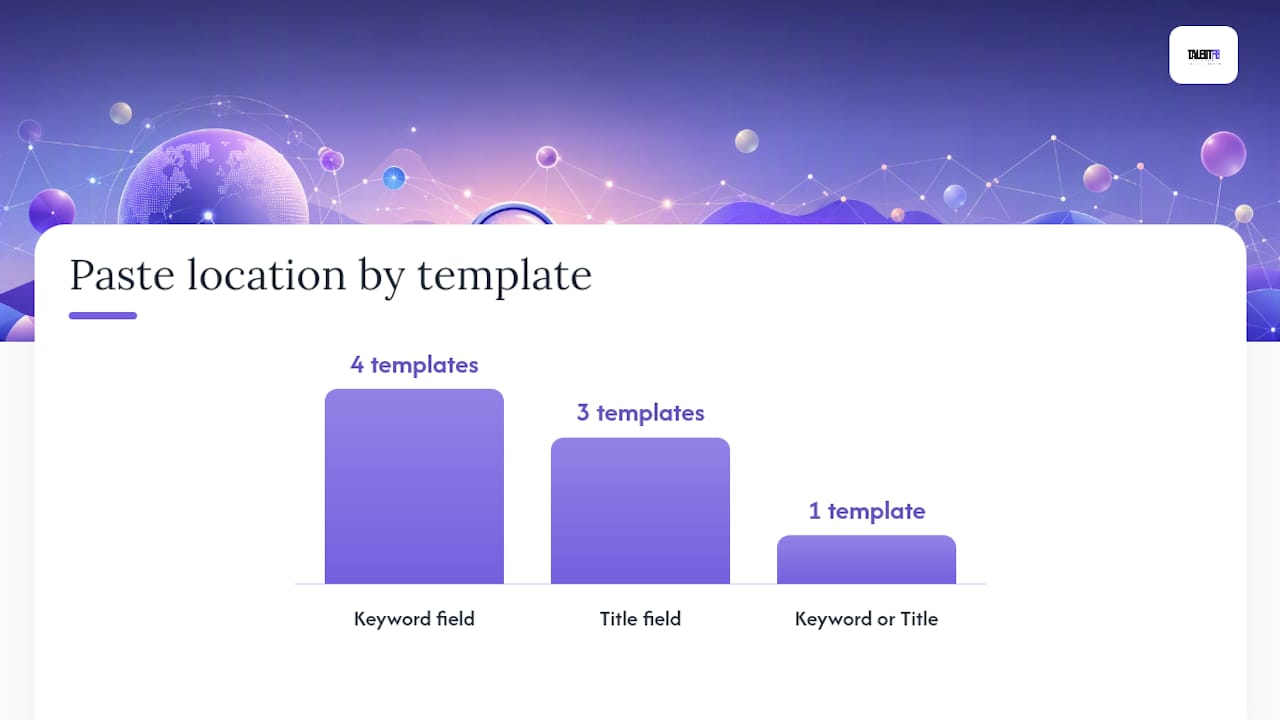
These strings follow a three-block pattern: an OR group for role synonyms, an AND block for required context, and a short NOT block to exclude predictable noise. This structure is the minimal viable pattern for most sourcing searches. Paste each string into the field indicated.
Engineering roles (paste into Keyword or Title field)
("software engineer" OR "software developer" OR "full stack engineer") AND (Python OR Go OR Rust) NOT (intern OR junior OR student)
Targets mid-to-senior engineers with specific language skills; exclude the NOT block if you want to see all levels.
Product management (paste into Title field for precision)
("product manager" OR "senior product manager" OR "head of product" OR "VP of product") AND (SaaS OR B2B OR "enterprise software")
Surfaces PM leaders with B2B context; add AND (“Series B” OR “Series C”) in keyword if you want startup-stage candidates.
Sales leadership (paste into Keyword field)
("sales director" OR "VP of sales" OR "head of sales" OR "account executive") AND (SaaS OR fintech OR "cloud software") NOT (SDR OR "sales development")
Excludes early-career SDR roles while keeping AEs and above.
Finance and FP&A (paste into Keyword field)
("financial analyst" OR "FP&A" OR "finance manager" OR "CFO") AND ("financial modeling" OR "budgeting" OR "forecasting") NOT (entry level OR graduate)
Executive search (paste into Title field)
("Chief Technology Officer" OR CTO OR "VP of Engineering" OR "Head of Engineering") AND (fintech OR "financial services" OR payments)
Keep this string short; executive titles are distinctive enough that long OR blocks rarely add value.
Data science (paste into Keyword field)
("data scientist" OR "machine learning engineer" OR "ML engineer" OR "AI engineer") AND (Python OR TensorFlow OR PyTorch) NOT (intern OR bootcamp)
DevOps and infrastructure (paste into Keyword field)
("DevOps engineer" OR "platform engineer" OR "site reliability engineer" OR SRE) AND (Kubernetes OR Terraform OR AWS) NOT (junior OR entry)
UX and design (paste into Title field)
("UX designer" OR "product designer" OR "UI/UX designer" OR "senior designer") AND (Figma OR "design systems" OR "user research")
Editable checklist for refining results:
To broaden a search:
- Replace AND with an OR group for a requirement that is not truly mandatory
- Remove one term from the NOT block
- Add a synonym to an existing OR group
To narrow a search:
- Move title synonyms from the keyword box into the dedicated Title field
- Add a geography or seniority filter in the platform’s picklists
- Add AND with a specific skill or tool that is genuinely required
For IT-specific roles, this practical guide on Boolean patterns for tech hiring walks through additional field-level examples worth bookmarking.
How to diagnose and fix a Boolean string that is not working
Most broken searches fail for one of a handful of predictable reasons. Work through this checklist before rewriting anything.
- Check operator capitalization. Are AND, OR, NOT all uppercase? Lowercase versions are treated as keywords, not commands.
- Check your quote marks. Open the string in a plain-text editor and confirm you are using straight quotes (
") not curly ones ("). Copying from a word processor is the usual culprit. - Count your parentheses. Every
(needs a matching). A quick way: count opening and closing brackets separately; the totals must match. - Check string length. On free LinkedIn, long strings get truncated. If your string has more than eight or nine operators, split it into two searches.
- Review your NOT block. Overly aggressive NOT exclusions can eliminate good candidates. If results are too thin, remove one NOT term and re-run.
- Check for unsupported syntax. Wildcards (
*), proximity (NEAR), and shorthand (+,-) are not supported. Replace any wildcard with an explicit OR list. - Evaluate your OR blocks. If results are too broad, your OR group may be pulling in unrelated profiles. Tighten by removing the weakest synonym.
Broken string example:
software engineer and python or java not intern
Fixed version:
("software engineer" OR "software developer") AND (Python OR Java) NOT intern
The fix: operators capitalized, title phrase quoted, parentheses added to group OR blocks correctly. That one edit changes the logic from ambiguous to precise.
Pro Tip: Change only one element at a time when debugging. If you fix capitalization and remove a NOT term simultaneously, you will not know which change produced the improvement.
Practitioner workflows and metrics that make Boolean sourcing repeatable
Writing a good string once is useful. Building a library of tested strings that your whole team can reuse is where the real productivity gain lives.

The test-tag-reuse workflow:
Run any new string against a sample of 25 profiles before committing to it. Scan the first 25 results and tag them mentally as “strong fit,” “marginal,” or “miss.” If fewer than 12 of the first 25 are strong fits, the string needs tightening before you invest outreach time. Once a string clears that threshold, save it with a short label (role, date, key filters used) in a shared team document.
Metrics worth tracking:
- Result volume: too few (under 50) usually means over-constrained NOT blocks or overly specific AND requirements; too many (over 5,000) usually means missing AND context
- Relevance rate in first 25 profiles: aim for at least 50% strong fits before scaling outreach
- Outreach reply rate: a well-targeted string should produce a meaningfully higher reply rate than a broad search; if it does not, the string is surfacing the right titles but the wrong context
Insider tips from the hiring room:
Build a master synonym document for each role family you hire repeatedly. Engineering titles alone have dozens of variants. Once you have a vetted OR block for “senior software engineer,” reuse it across every engineering search and update it quarterly as new titles emerge. Sales Navigator’s structured filters for Seniority and Function let you move that filtering out of the string entirely, keeping your keyword field short and your results cleaner.
When you hit the free-account operator cap, resist the urge to cram everything into one string. Two focused searches merged into one shortlist consistently outperform one bloated string that LinkedIn partially ignores.
LinkedIn Recruiter’s filter-level Boolean is worth the investment for any team running more than 10 active searches at once. The “Can have / Must have / Doesn’t have” logic across multiple fields gives you precision that no single keyword string can match.
Pro Tip: Build a shared Google Sheet with columns for role, string, platform, result volume, and relevance rate. After 10 searches, patterns emerge fast — you will see which OR synonyms consistently add signal and which ones only add noise.
What I have learned from 15 years inside the hiring room
The most common mistake I see recruiters make is treating Boolean search as a one-time task rather than an iterative process. They write a string, run it once, get mediocre results, and conclude that Boolean does not work for their role. What actually happened is that the string needed one or two refinements, and they stopped before finding them.
My honest recommendation: if you are sourcing more than five roles simultaneously, Sales Navigator pays for itself within the first month through time saved on false positives alone. The fielded Title input and structured filters reduce the cognitive load of building long strings, and the saved search feature means you are not rebuilding from scratch every week. For occasional sourcing or a tight budget, free search plus Google X-ray covers most use cases, provided you keep strings short and split large synonym lists across multiple searches.
Start with the starter string at the top of this article. Run it, check the first 25 results against the troubleshooting checklist, make one adjustment, and run it again. That single iteration loop, done consistently, is what separates recruiters who find great candidates from those who complain that LinkedIn search does not work.
How TalentFB helps you turn these techniques into faster hires
Knowing the syntax is one thing. Turning it into a repeatable sourcing system that consistently fills senior roles is another. At TalentFB, we work directly with recruiters, hiring managers, and tech founders to build exactly that: a sourcing workflow where Boolean strings, outreach sequences, and LinkedIn profile optimization work together as a system rather than as isolated tactics.
The professionals we coach move from scattered searches to a structured pipeline, with tested strings, a synonym library, and outreach templates calibrated to their specific role types. If you want hands-on help building that system, the TalentFB LinkedIn coaching program is the place to start. Book a consult and we will map out your sourcing workflow in the first session.
Sources
- Use Boolean search on LinkedIn | LinkedIn Help
- LinkedIn Boolean search: operators, tier limits, and copy-paste strings for 2026
- LinkedIn Boolean Search: Complete Guide (2026)
- LinkedIn Boolean search — how to use it (Neal Schaffer)
- Use Boolean in LinkedIn Recruiter